Kitchen Display System Guide: How a KDS Cuts Ticket Times and Ends Paper Chaos in 2026
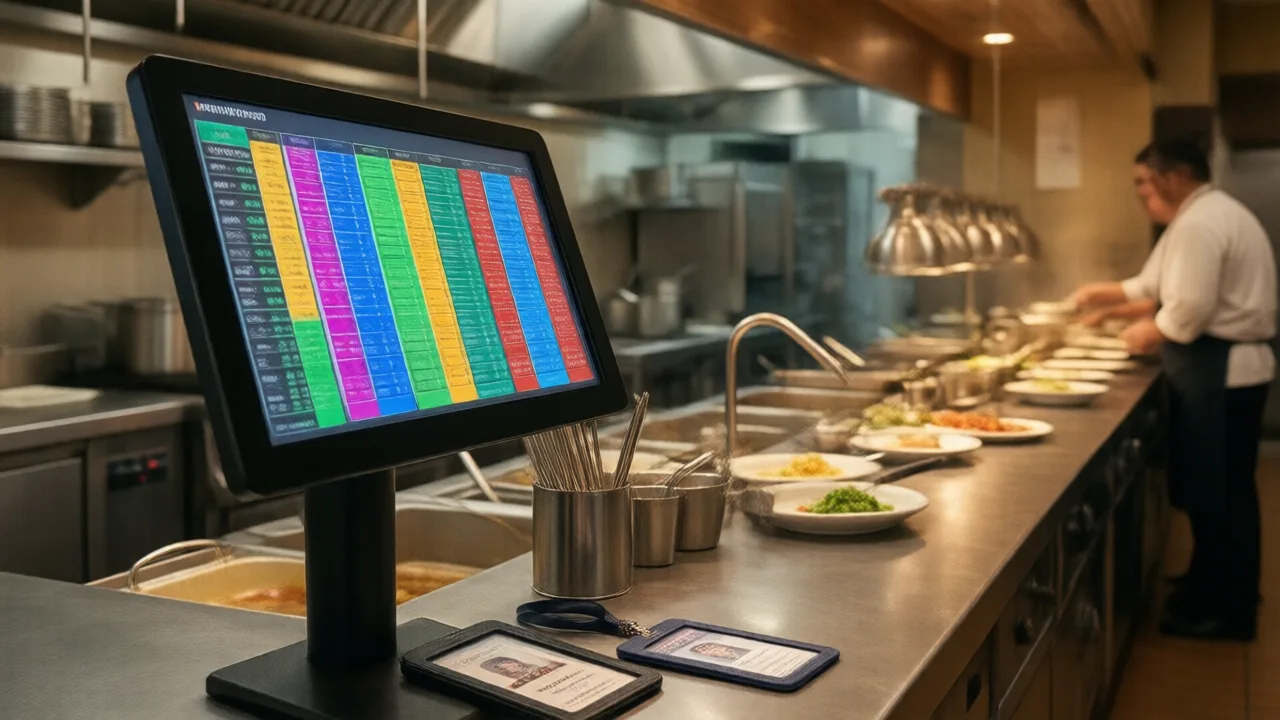
Watch a paper-ticket kitchen during a real rush and you will see the same three failures every service. A ticket prints, someone tears it wrong, and half the order stays in the printer. A chit slides off the rail and lands behind the line, unmade, until a guest asks where their food is. And the expo — the person who is supposed to be reading, timing, and calling — spends the whole night walking back and forth reconciling paper instead of running the pass. None of these are the cook's fault. They are the predictable failure modes of paper, and they get worse exactly when the room is fullest.
The frustrating part is what those failures cost. A single remade entrée is not just wasted food; it is a table waiting longer, a server apologizing, a comp on the check, and a cook pulled off the line to redo work. Multiply that by a busy weekend and the paper system is quietly draining margin and goodwill in equal measure. Owners feel it as "we just get slammed on Fridays," rarely tracing it back to the humble receipt printer that is the actual bottleneck.
Here is the good news: this is one of the few restaurant problems with a clean, proven fix. A kitchen display system replaces the printer and the paper rail with screens that receive orders directly from the POS, route each item to the station that makes it, and time everything automatically. Below is exactly what a KDS does, how the pieces fit together, what it costs, and how to pick one without getting sold a system that works great in a demo and falls apart at 7:45 on a Saturday.
What a Kitchen Display System Actually Does
Strip away the marketing and a KDS does four concrete things a printer cannot. First, it receives orders electronically the instant they are fired from the POS — no printing, no tearing, no physical hand-off. Second, it routes items intelligently, so the grill screen shows only the proteins, the fry screen only the fried items, and the cold station only the salads, all from the same ticket. Third, it times every ticket automatically, coloring tickets green, yellow, then red as they age so anyone can see at a glance what is falling behind. Fourth, it captures the data — average ticket time by station, by daypart, by menu item — that paper throws in the trash the moment an order is bumped.
That last point is where the ceiling is higher than most owners expect. A paper kitchen has opinions about which items are slow; a KDS kitchen has numbers. When you can see that your build-your-own bowls average ninety seconds longer than everything else on the menu during the lunch rush, you can do something about it — reposition the station, prep differently, or reprice. The same reporting instinct that makes a good operator study their food-cost and waste data applies directly to the line, and the KDS is what turns the line into something you can measure.
Bump Bars, Touchscreens, and How Routing Works
Physically, a KDS station is a commercial screen mounted where a cook can read it without leaning in, paired with one of two input methods. A bump bar is a sealed, spill-proof row of physical buttons — cooks with wet or gloved hands love it because it works without looking and survives being splashed all night. A touchscreen is more flexible and shows richer detail but needs a protected mount and regular wiping. Many kitchens run bump bars on the hot line and a touchscreen at expo, which is a sensible split.
Routing is the feature that separates a real KDS from a screen that just mirrors the printer. Configured properly, one four-item order arrives as three partial tickets: the grill sees the steak and the burger, the fry station sees the wings, and the cold station sees the wedge salad — each station seeing only its own work and none of the clutter. When every station bumps its part, the expo screen shows the order as complete and ready to assemble. Done well, this is the difference between a kitchen that flows and one that shouts.
| Input type | Best for | Trade-off |
|---|---|---|
| Bump bar | Hot line, high-splash stations, gloved hands | Fixed button layout, less detail |
| Touchscreen | Expo, prep, low-splash stations | Needs wiping, protected mount |
| Hybrid (both) | Most full-service kitchens | Slightly higher hardware cost |
The Numbers: What a KDS Changes on the Line
The gains are not mysterious, and they are not marketing. They come from removing three specific sources of waste — reprinting, walking, and remaking — and they show up in metrics you already care about.
- Ticket times drop. Kitchens moving from paper to a routed KDS commonly cut average ticket time by 10 to 25 percent, mostly by eliminating the printer-to-rail-to-station shuffle and giving the expo live timing instead of a memory game.
- Comps and remakes fall. When each station sees a clean, legible, correctly routed ticket, the misread-handwriting and lost-chit errors that drive comps largely disappear. Fewer remakes means less wasted food and fewer pulled-off-the-line moments.
- Throughput rises without adding labor. A line that turns tickets 15 percent faster can push more covers through the same rush with the same crew — the closest thing to free capacity a kitchen ever gets.
- The rush stops depending on one person's head. Timing lives on the screen, not in the expo's memory, so a strong Friday no longer requires your single best expo to be working.
None of this requires heroics. It requires the printer to stop being the single point of failure, and the timing data to become visible to everyone instead of trapped in one person's head.
Real Numbers: A 90-Seat Bistro Kills the Printer
A 90-seat neighborhood bistro in Denver was comping roughly $1,400 a month in remakes, most of them traced to misread paper tickets and orders lost during the 7-to-9 rush. They installed a two-screen KDS — a bump bar on the hot line, a touchscreen at expo — bundled with their POS at no added software cost, with about $1,900 in hardware. Within six weeks, average ticket time during the dinner rush fell from 18.5 minutes to 14 minutes, comps from kitchen errors dropped by just over half, and the owner stopped scheduling a second expo on Fridays because the screens did the timing. The hardware paid for itself in under two months on comps alone, before counting the labor saved or the covers the faster line let them turn.
How to Choose a Kitchen Display System
The single most important decision is not the screen — it is how the KDS talks to your POS. A KDS has to receive orders reliably at the exact moment the room is busiest, so integration is everything.
- Prefer a native KDS. When the POS and KDS are built by the same vendor and share one database, orders arrive instantly and nothing gets lost in translation. Bolt-on units that integrate with a third-party POS can work, but each integration is a failure point that tends to reveal itself during volume, not during the demo.
- Test it under load, not at rest. Any KDS looks great with three tickets on screen. Ask to see — or simulate — twenty active tickets across three routed stations and watch for lag, dropped items, or routing that quietly breaks.
- Insist on commercial-grade hardware. A consumer tablet dies in a hot, greasy kitchen. Look for screens rated for heat and humidity with sealed bump bars, the same durability logic you would apply when comparing any POS hardware built to survive a real line.
- Confirm the routing is flexible. Menus change. You should be able to reassign an item to a different station in seconds, not file a support ticket.
- Check the reporting. The data is half the value. Make sure you can actually see ticket times by station and daypart, not just a live board that forgets everything at close.
- Plan the rollout and the training. A KDS is simpler than paper once cooks use it, but the switch still needs a short, deliberate onboarding — the same care you would give training staff on any new POS workflow.
If you are evaluating systems from scratch, it is worth understanding how the KDS fits into the whole platform rather than treating it as an accessory. A well-built kitchen display system that is native to the POS shares the same menu, the same modifiers, and the same order data end to end, which is exactly what makes the routing and timing trustworthy during a rush.
Common Mistakes That Waste the Investment
A KDS is straightforward, but a few predictable errors turn a great tool into an expensive screen showing the same clutter paper did.
- Not routing items to stations. If every screen shows the whole ticket, you have bought a digital printer, not a KDS. The routing is the point.
- Mounting the screen wrong. Too high, too far, or in glare and cooks squint instead of cook. Mount it at eye level, close, and out of direct light before you judge the system.
- Skipping expo training. The expo's job changes most — from reconciling paper to running live timing. Skip that conversation and the pass stays chaotic.
- Ignoring the data. Owners install the screens, enjoy the faster line, and never open the reports. The ticket-time data is where the second wave of improvement lives.
- Buying a bolt-on to save a few dollars. A cheaper KDS that drops items during the rush costs far more in comps and chaos than it ever saved on the invoice.
A KDS That Actually Talks to Your POS
KwickOS includes a native kitchen display system that shares one database with your POS — orders route instantly, timing is automatic, and nothing gets lost between the register and the line. See it handle a real rush before you commit to anything.
Review the KwickOS buyer checklist →The Bottom Line
A kitchen display system solves a problem most owners have quietly accepted as the cost of being busy: paper does not route, does not time, and does not survive a rush. Swapping it for screens that receive orders straight from the POS, split each ticket to the right station, and color every ticket by age is one of the highest-return upgrades a kitchen can make — the hardware often pays for itself in comps alone within a couple of months, before you count the faster tickets or the covers a quicker line lets you turn. The two decisions that matter are getting a KDS that is truly native to your POS and configuring the routing properly. Get those right, mount the screens where cooks can read them, and spend ten minutes with the expo explaining their new job. Then watch the Friday that used to break the kitchen become the Friday it runs.